LPH Improves Profits with SEO Services, B2B Content Marketing, and Metrics Based Marketing

Home page

Importing your WordPress Database - all the steps

Exporting a Backup of your WordPress Database

The way WordPress works is all of your content that you have written for your website is stored in your database. phpMyAdmin is a hosting industry standard for managing MySQL databases, and many hosts provide this tool for their users to use. Since this tool is widely available, we will show you how to use phpMyAdmin to downlaod a backup of your existing database.
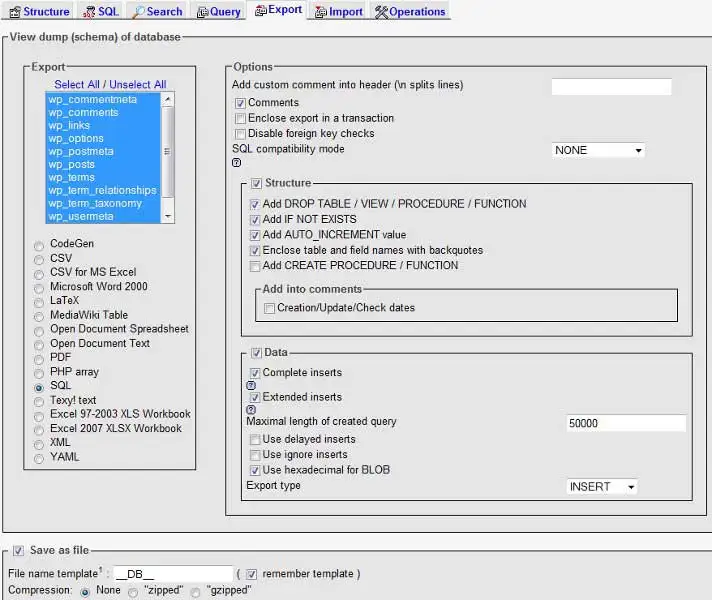
wordpress_export
  1. At your previous host, access phpMyAdmin.
  2. Load your WordPress database by clicking the database name in the left hand menu pane.
  3. Click the "export" tab at the top right.
  4. Under "export, highlight all the tables and select "SQL". These are the default settings.
  5. Under "options" make sure that "add DROP TABLE/ VIEW/ PROCEDURE/ FUNCTION" is selected.
  6. Ensure that "Save as File" towards the bottom of the page is selected.
  7. Click Go

This is prompt you to download the backup file.

Creating a NEW MySQL Database

To be able to import the database you just exported from your previous host, you will first need to create a blank database.

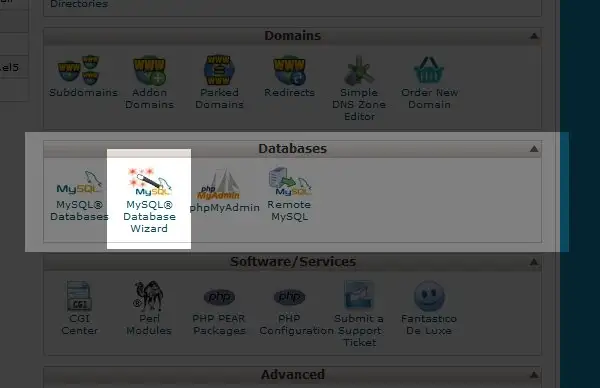
mysql_database_wizard
  1. Log into your cPanel account
  2. Click the "MySQL Database Wizard" link.
  3. In Step 1 of the Wizard, enter a name for your new databse. You can name your database whatever you would like, just be sure to write this down somewhere for future reference.
  4. In Step 2 of the Wizard, enter a database username and password. You can enter anything you would like as the user, please make a note of the username and password for future reference.
  5. In Step 3 of the Wizard, select "ALL PRIVILEGES" and click "Next Step"

Importing the Backup you Created

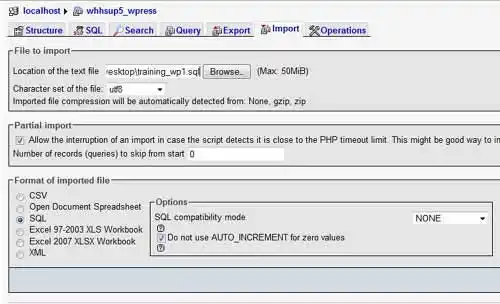
phpmyadmin_import
  1. Log into your cPanel account.
  2. Click on the "PHPMyAdmin" icon.
  3. Select the database you just created.
  4. Click "Import" in the top right.
  5. Click the "Browse" button and select the database backup file on your computer that you created earlier.
  6. Click "Go"